

Windows method:
Download the IPTV Smarters app via this URL:
https://www.iptvsmarters.com/download?download=windows
MAC method
Download the IPTV Smarters app via this URL:
How to set up IPTV on Fire TV Stick
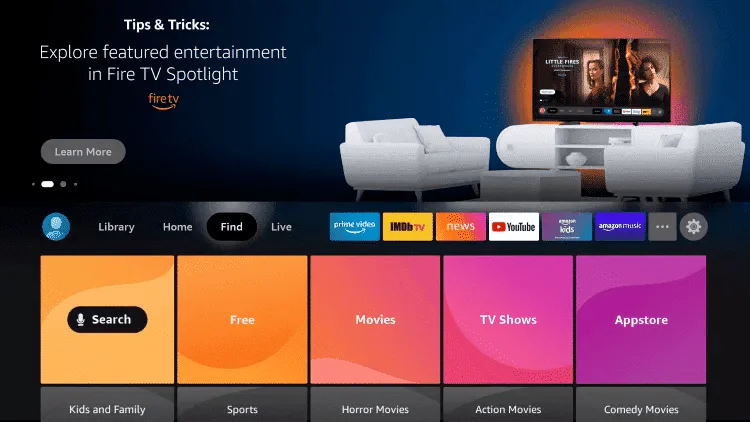
1: From your device’s home screen, hover over the “Search” option.
.
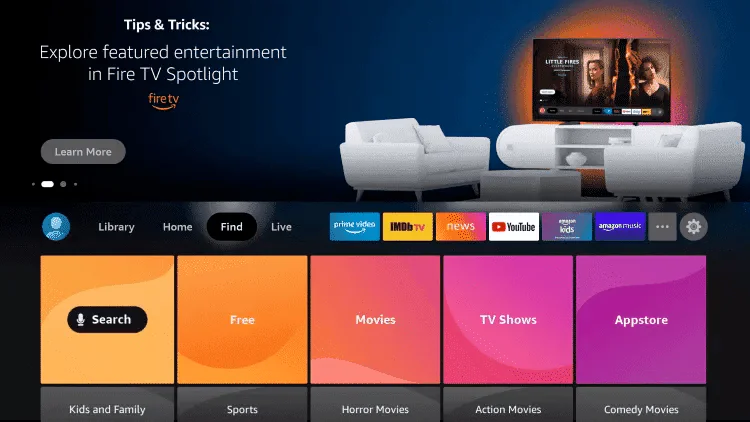
2.Click on Search
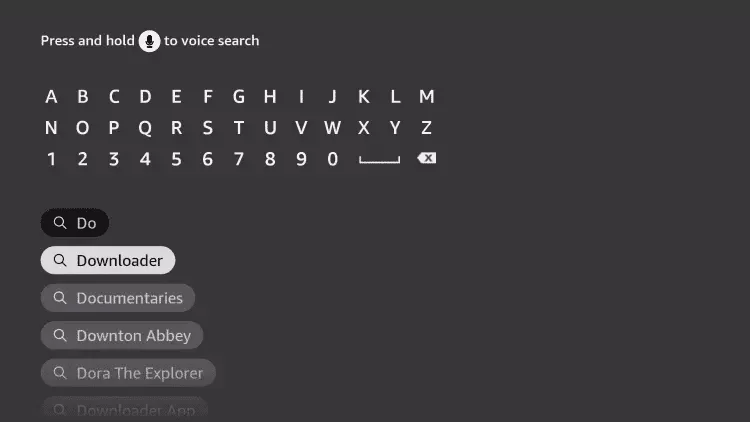
3.Search for and select Downloader.
4.Select the Downloader application.
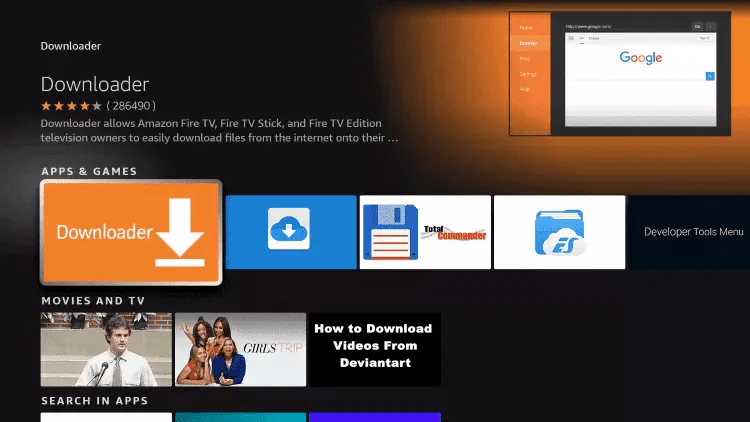
5.Click on Download.
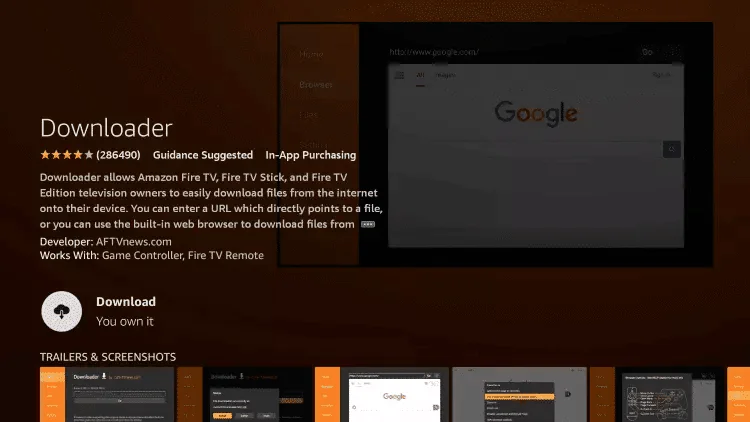
6.Once the application is installed, click Open.
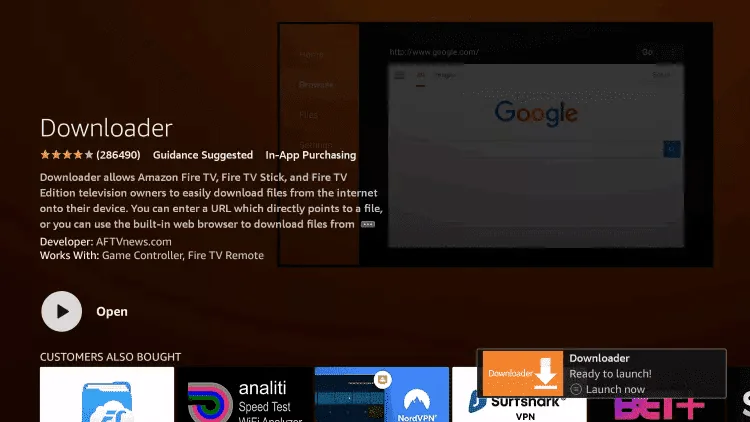
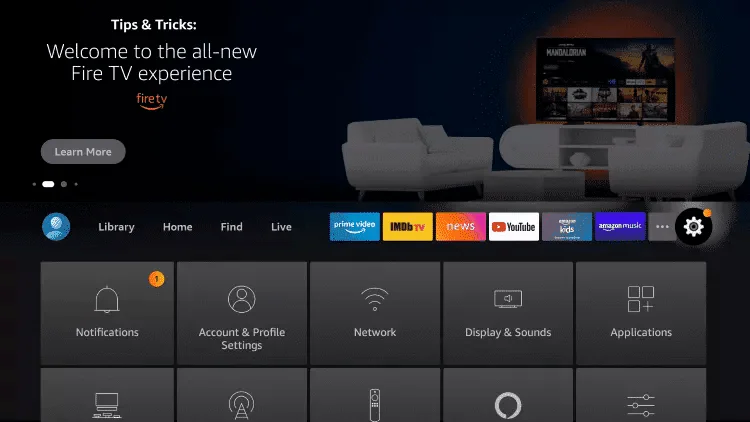
7.Return to the home screen and open Settings
8.Click on My Fire TV.
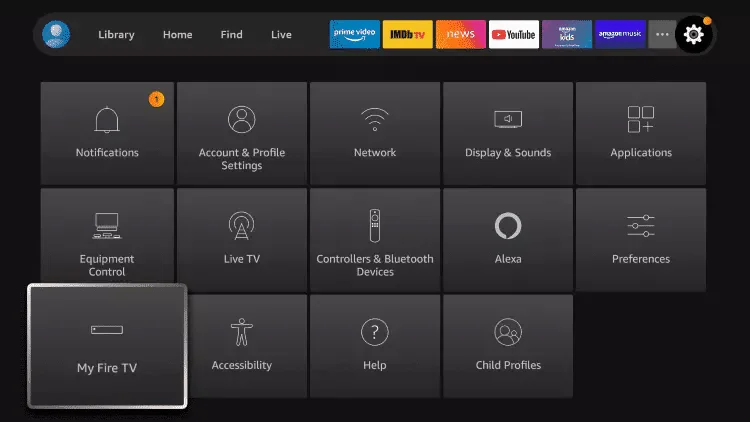
9.Select Developer options.
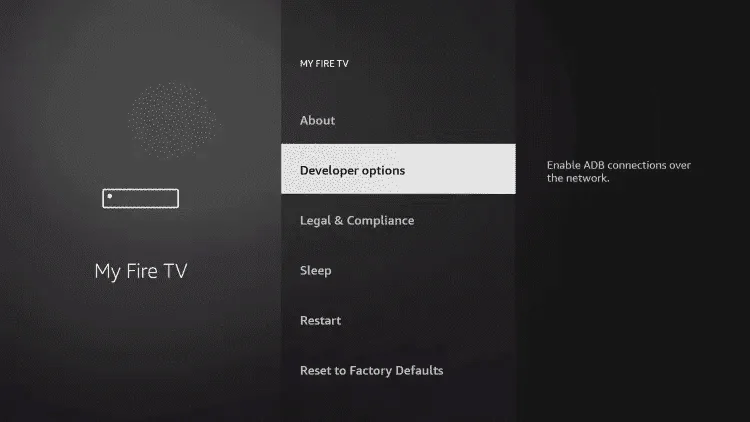
10.Click on Install unknown applications.
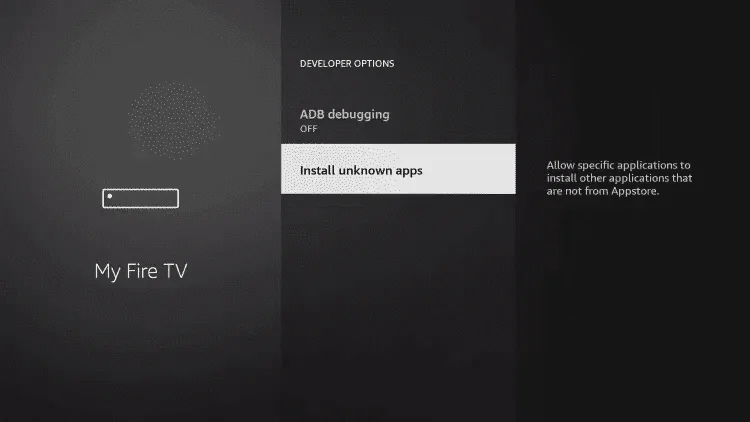
11.Find the Downloader application and click on it.
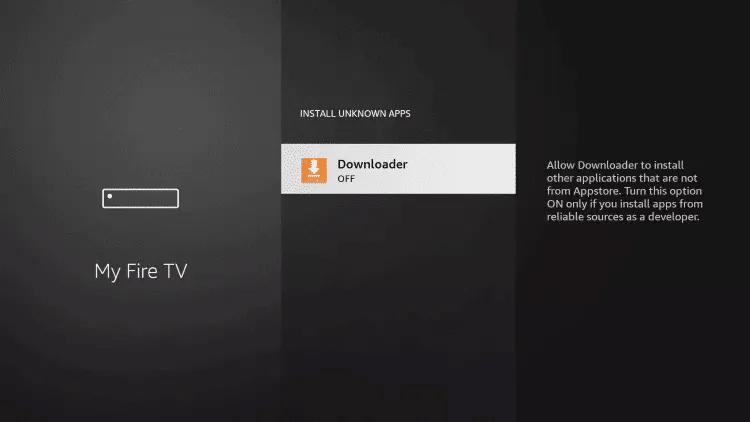
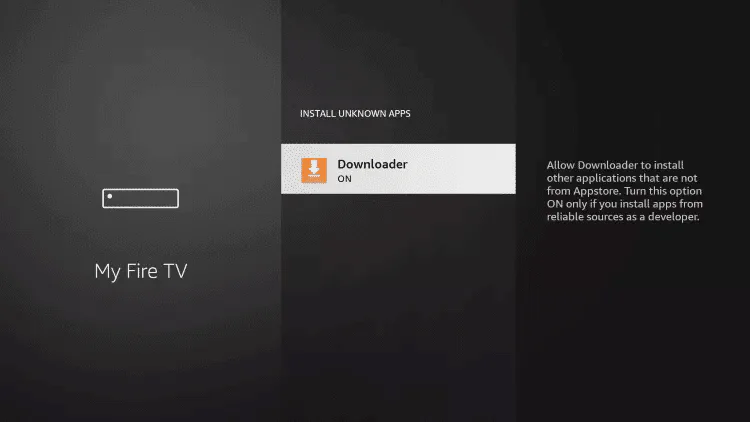
12.This will enable Unknown Sources for the Downloader app. This will allow the installation of external apps on your device.
13.Launch the downloader.
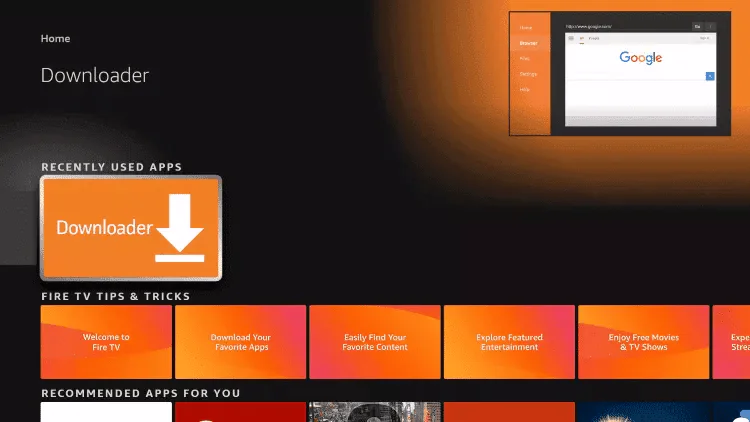
14. Click Allow.
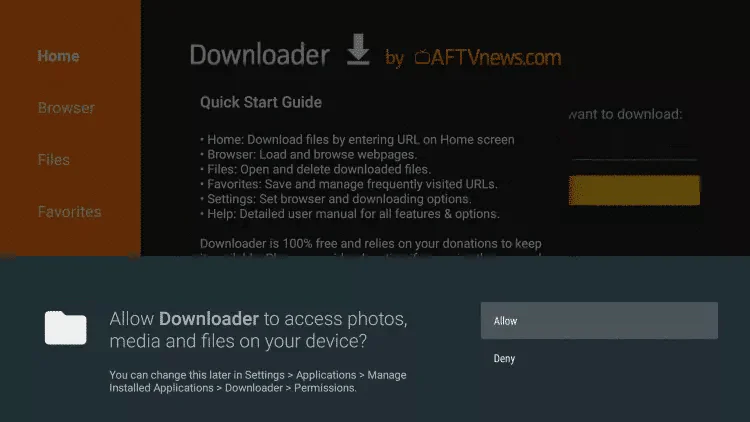
15. Click OK.
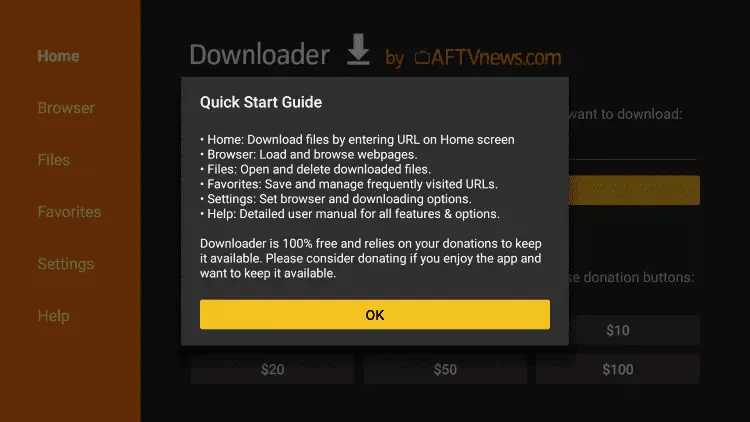
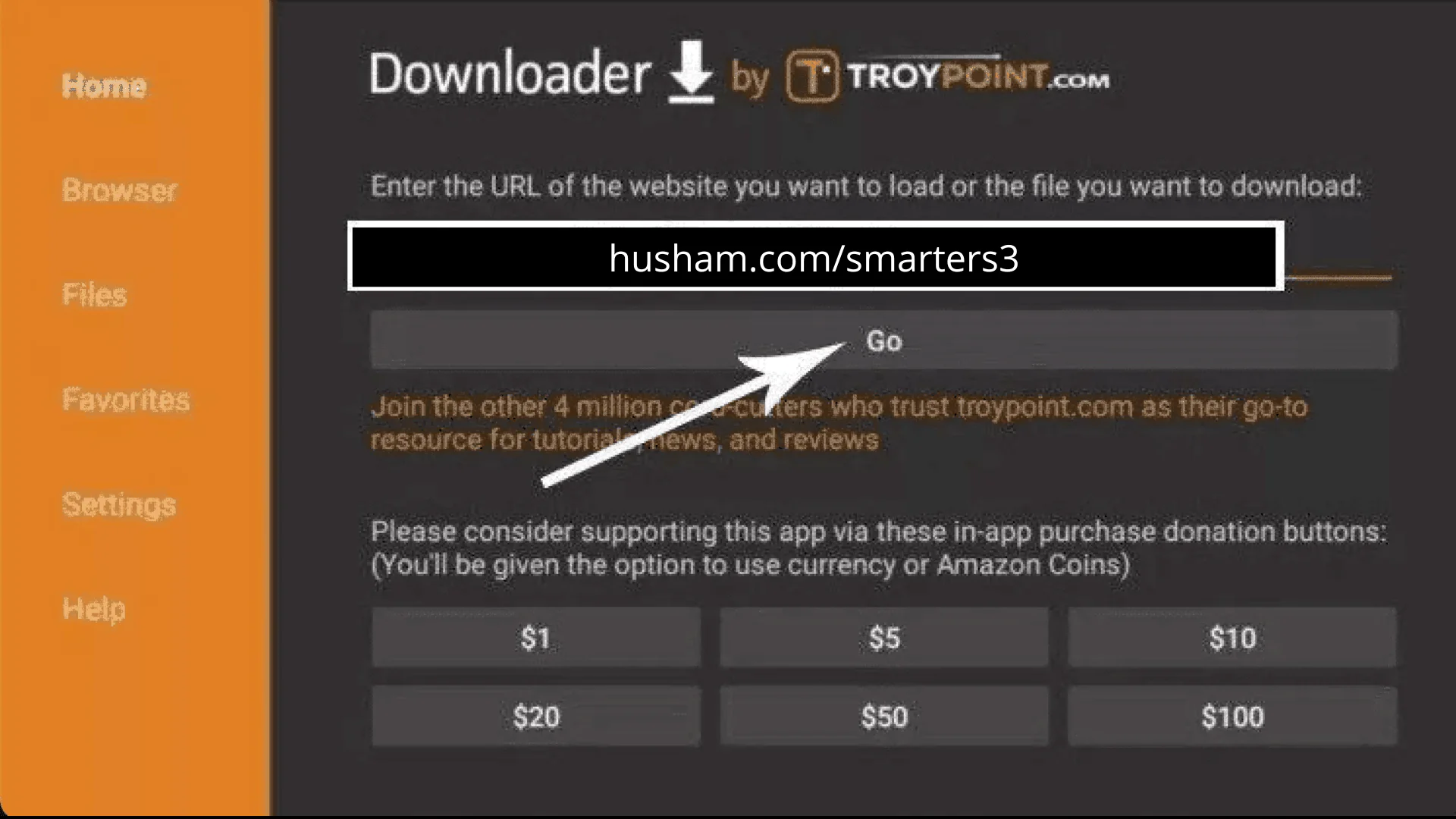
16. Enter the following URL exactly as shown here: https://www.iptvsmarters.com/smarters.apk
And click on “Go”.
17. Wait for the file to download.
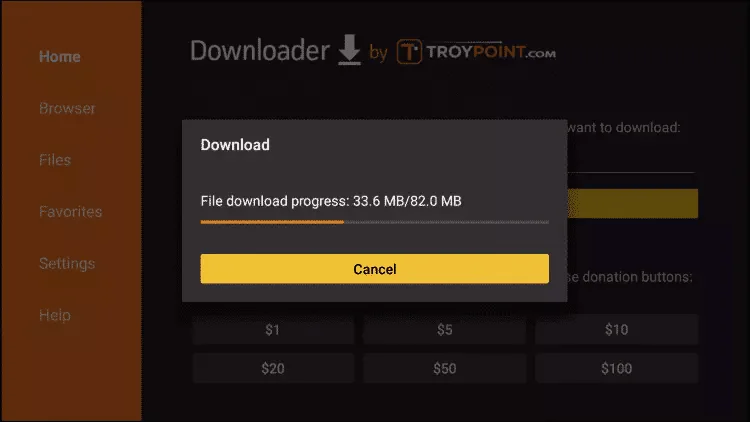
18. Click on Install.
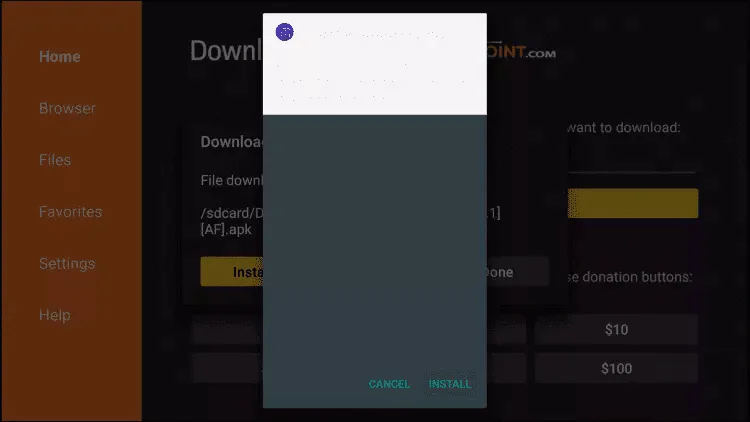
19. Click on Done.
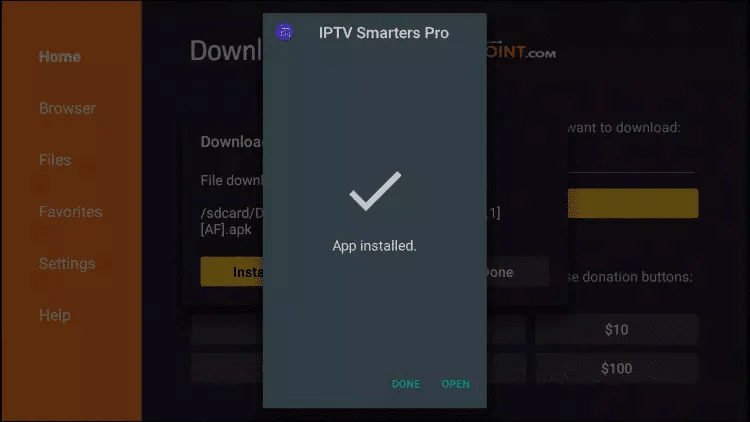
20. Open the IPTV Smarters app, then select Connect with Xtream API codes.
21.Enter the login details we sent you via WhatsApp, email, or chat.
FOR TIVIMATE
1. Enter the following URL exactly as shown here: https://tivimates.com/tiviapk
And click on “Go”.
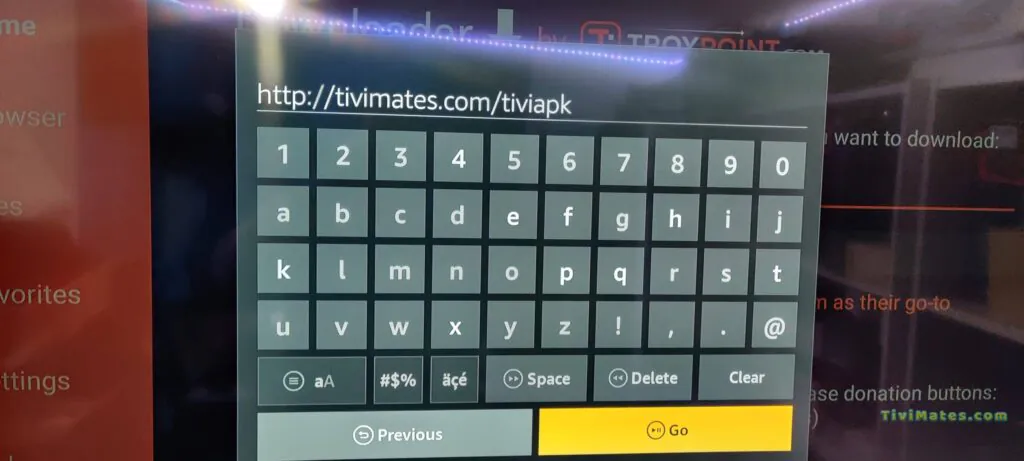
2. Wait for the file to download.
Wait until the file download is complete.
3. Click on Install and once the installation is complete, you can open the application.
4. Click on “Add a playlist” and then choose “Xtream Codes”.
5. Enter the login details we sent you via WhatsApp, email, or chat.
How to set up IPTV on Android with the IPTV Smarters Player app
Step 1: Start by downloading the IPTV Smarters app via this URL:
https://www.iptvsmarters.com/smarters.apk
Step 2: Open the application once downloaded and enter the login credentials.
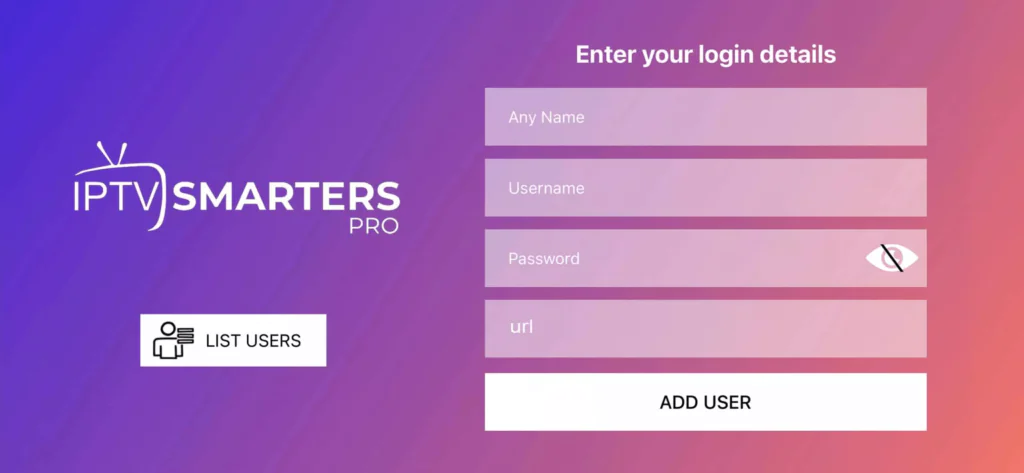
Step 3: Enter the login details we provided after you subscribed with us.
Now, click “ADD A USER” to proceed to the next section.
Step 4: Wait a few seconds.
Step 5: Now, click on the “Live TV” icon as indicated by the red arrow in the image.
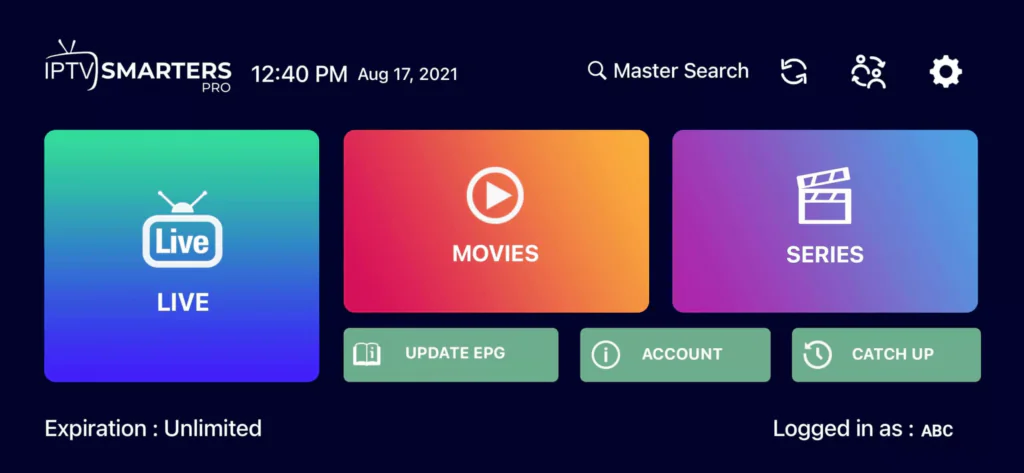
Step 6: Now, select the channel group you want to watch and proceed to the next section.
Step 7: Now, click on the channel name, then double-click on the small screen to switch to full-screen mode. That’s the final step.
Perfect! You’re done.
Here’s how to set up IPTV on Apple/iOS with the IPTV Smarters Player app:
Step 1: Start by downloading the IPTV Smarters app from the App Store using this URL:
https://apps.apple.com/in/app/smarters-player-lite/id1628995509
Or you can search for it directly on the App Store.
Install the app on your iOS device.
Step 2: Open the app once downloaded and enter your login credentials.
Step 3: Enter the login details we provided after you subscribed with us.
Now, click “ADD A USER” to proceed to the next step.
Step 4: Wait a few seconds.
Step 5: Now, click on the “Live TV” icon as indicated in the image by a red arrow.
Step 6: Now select the channel group you want to watch and proceed to the next section.
Step 7: Now click on the channel name, then double-click on the small screen to switch to full-screen mode. This is the final step.
Step 8: To add the Electronic Program Guide (EPG), you don’t need to add a URL. Simply click on “Install EPG”.
.
Finished !
Step 1: You can download SetIPTV / NetIPTV / IBO Player Pro / IBO Player from your TV’s app store (Samsung, LG, etc.).
Step 2: After installation, open the application. You will find the MAC address displayed on the screen. With IBO Player Pro and IBO Player, you will find both the MAC address and the device key.
EX:
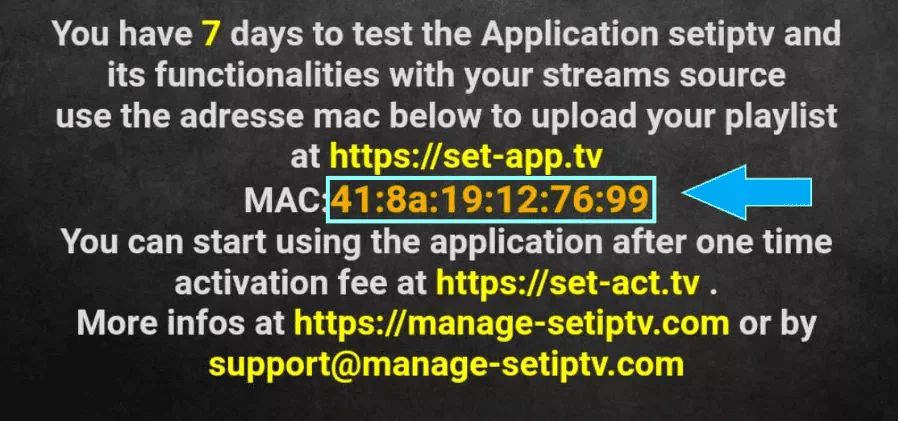
Step 3: Send us the MAC address via WhatsApp, email, or live chat.
Step 4: After a few minutes, restart your TV and reopen the application.
Done!
Here’s how to install IPTV on Apple TV:
Installing the IPTV App
Open the App Store on your Apple TV
Search for an IPTV app (such as IPTV Smarters or GSE Smart IPTV)
Download and install the app you choose
Setting up IPTV
Launch the installed IPTV app
Enter the M3U URL or Xtream API codes provided by your IPTV service
Configure your channels and start watching
Note: The exact steps may vary slightly depending on the app you choose, but the process remains similar.
Step 1: Send us your MAG’s MAC address via WhatsApp, email, or live chat.
Step 2: After receiving payment, we will send you the portal link.